YouTube Subtitle Downloader: Download Captions as SRT, VTT or TXT
This YouTube subtitle downloader saves the captions of a public YouTube video as an SRT, VTT or TXT file. Paste the video link, choose a caption language, and your file is ready in a few seconds. It is free, runs in your browser, and does not ask you to sign in or install anything.
YouTube Subtitle Downloader reads the caption tracks that YouTube already provides for a video. That includes subtitles uploaded by the creator and, when they exist, automatic captions. If a video has no captions at all, there is nothing to download, and this page explains how to check that before you try.
Download YouTube Subtitles Now!

What You Can Download With This Tool
With YouTube Subtitle Downloader, you get the caption track in the format that suits your task:
- SRT and VTT: timed subtitle files, where every line carries a start and end time.
- TXT: only the spoken words, with no timestamps, which is easier to read, search and quote.
Every caption language listed for the video appears in a dropdown, and automatic tracks are labeled as auto-generated so you can tell them apart from manual ones. If YouTube offers translation languages for that video, you can pick one and download the translated version instead. Leave the translation option on its default to keep the original wording.
Using YouTube Subtitle Downloader is free, needs no account and needs no software. The interface itself is available in 17 languages, so you can switch to the one you read most comfortably.
A few things it does not do, so you know what to expect:
- It does not transcribe audio. If a video has no captions, no file is created.
- It does not export Word or PDF files.
- It handles one video at a time, not whole playlists or channels.
Subtitle Downloader Tool Features
YouTube Subtitle Downloader gives you everything you need to save captions in seconds:
- Download a YouTube video transcript as plain text (.txt) or as timed subtitle files (.srt or .vtt).
- TXT has no timing data, just the spoken words, which is easier to read.
- Choose from the available subtitle languages, including auto-generated captions.
- Caption timings are arranged accurately, line by line.
- Works for long YouTube videos too.
- No login, no YouTube account and no software to install.
- Unlimited use, free for everyone.
- Interface available in 17 languages.
How to Download YouTube Subtitles
Exporting subtitles from YouTube is very easy with YouTube Subtitle Downloader. The whole process takes about a minute.
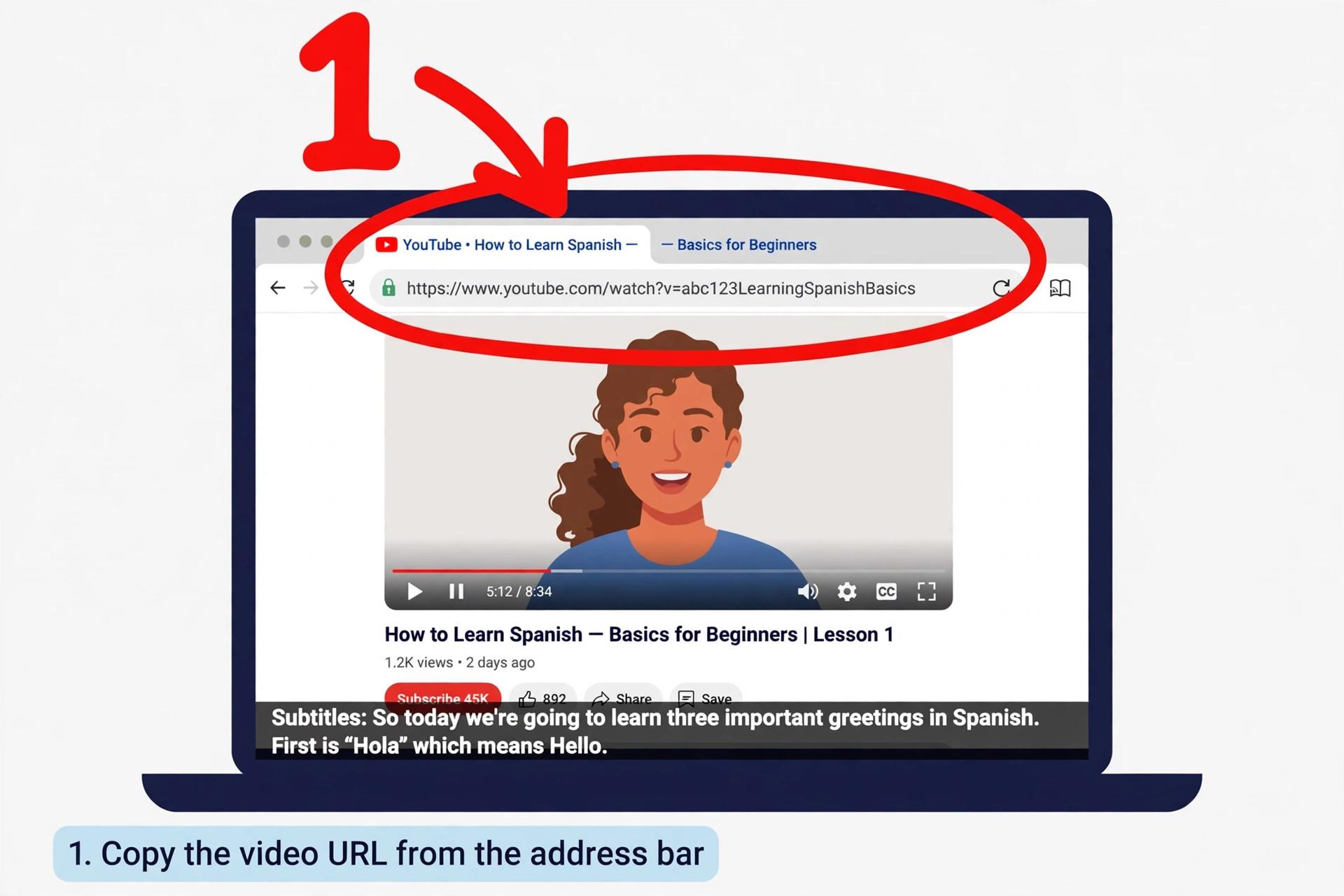
To download subtitles to your desktop pc:
- Go to YouTube and find the video you want to save subtitles from.
- Copy the URL of the video from the address bar of your browser.
- Paste the URL into the box above and click "Get Subtitles".
- Check the result. The tool shows the video title and thumbnail so you can confirm it found the right video.
- Pick a caption language, then click SRT, VTT or TXT. The file downloads straight to your device.
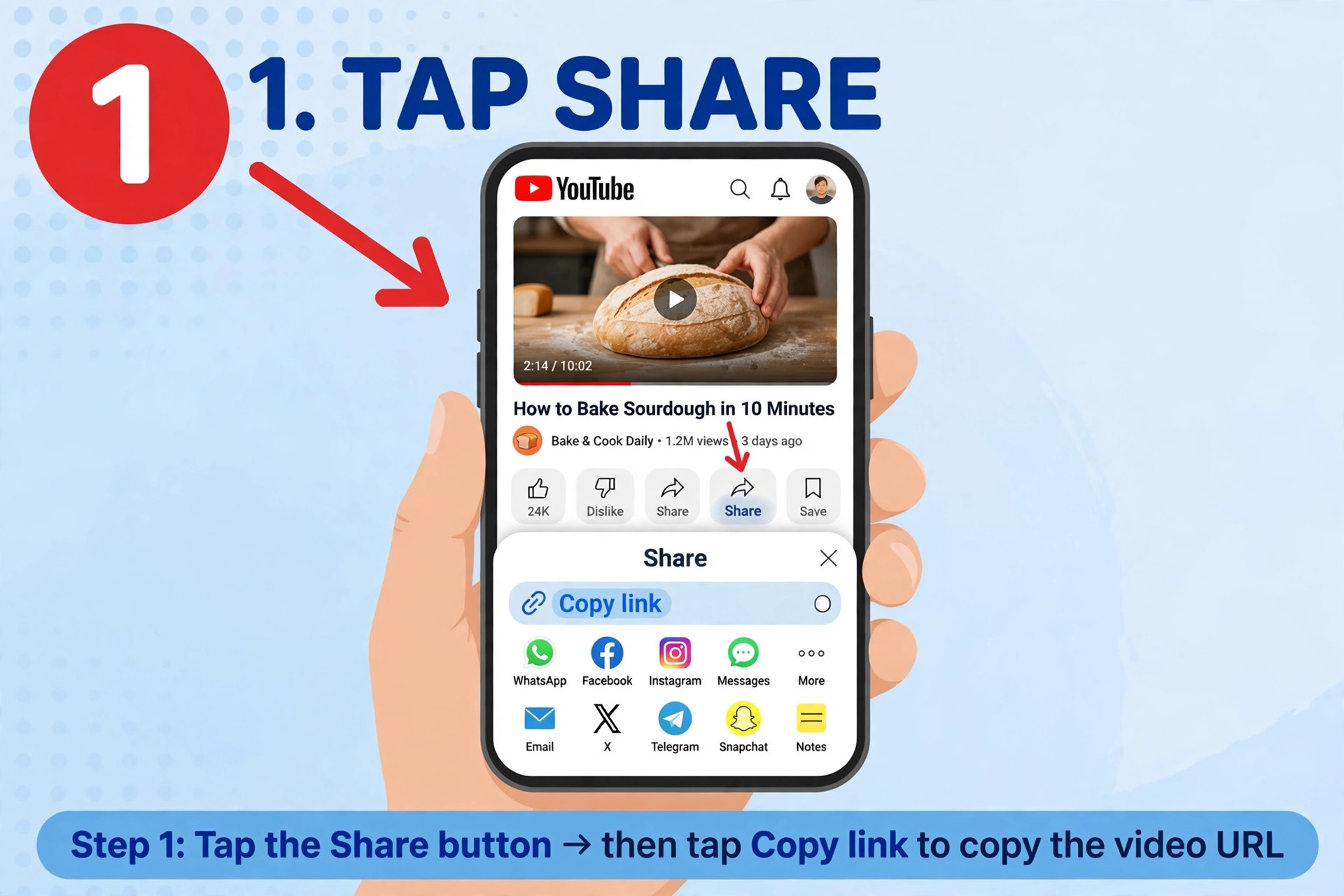
To download subtitles to your mobile device:
- Open the YouTube app and find the video you want.
- Tap Share below the video, then choose Copy link.
- Paste the link into the box above and tap "Get Subtitles".
- Check the video title and thumbnail to confirm it is the right video.
- Pick a caption language, then tap SRT, VTT or TXT to save the file.
If you get an error, the video most likely has no captions, or it is private or restricted. The section on missing subtitles below covers the usual causes.
Download YouTube Subtitles Browser Extension
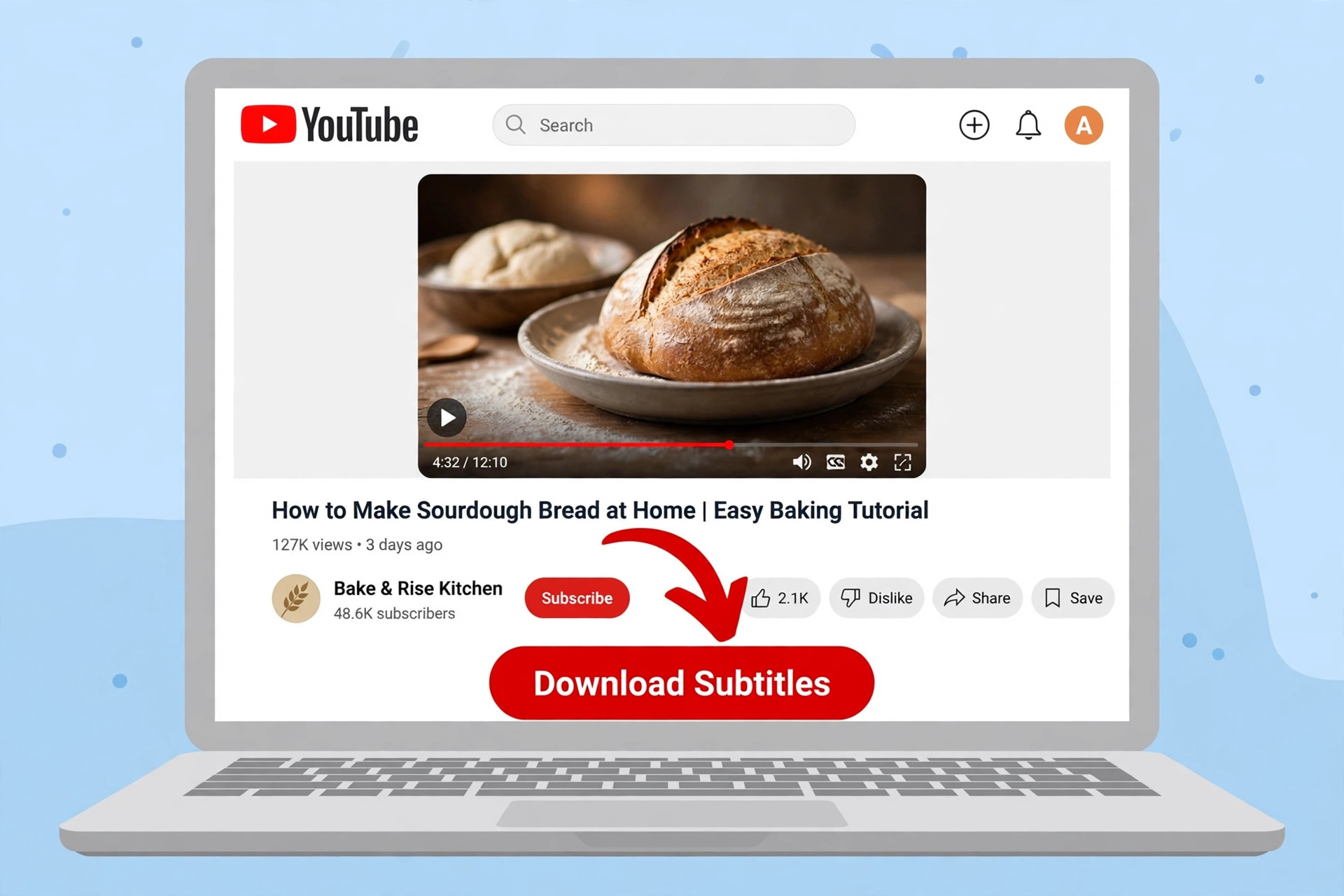
With the free YouTube Subtitle Downloader extension, you get subtitles in one click, without copying links. The extension adds a subtitle download button directly under YouTube videos, so you can save SRT, VTT or TXT files instantly while you watch.
SRT, VTT or TXT: Which Format Should You Choose?
All three formats from YouTube Subtitle Downloader contain the same caption text. The difference is how that text is packaged.
| Format | Timestamps | What it looks like | Best for |
|---|---|---|---|
| SRT | Yes, start and end time for each line | Numbered cues, with a comma before the milliseconds | Subtitle files for editing, re-uploading captions, and players that accept separate subtitle files |
| VTT | Yes | Starts with a WEBVTT header, with a period before the milliseconds | Browser-based video players and web projects |
| TXT | No | Plain lines of spoken text | Reading, searching, quoting and taking notes |
A simple rule works for most people. Choose SRT when you need a subtitle file for a video or an upload, VTT when the player or website specifically asks for WebVTT, and TXT when you only want to read the words.
Here is how the same two lines of speech look in each file:
SRT
1
00:00:00,000 --> 00:00:02,500
Welcome to the channel.

2
00:00:02,500 --> 00:00:06,000
Today we are looking at how captions work.
VTT
WEBVTT

00:00:00.000 --> 00:00:02.500
Welcome to the channel.

00:00:02.500 --> 00:00:06.000
Today we are looking at how captions work.
TXT
Welcome to the channel.
Today we are looking at how captions work.
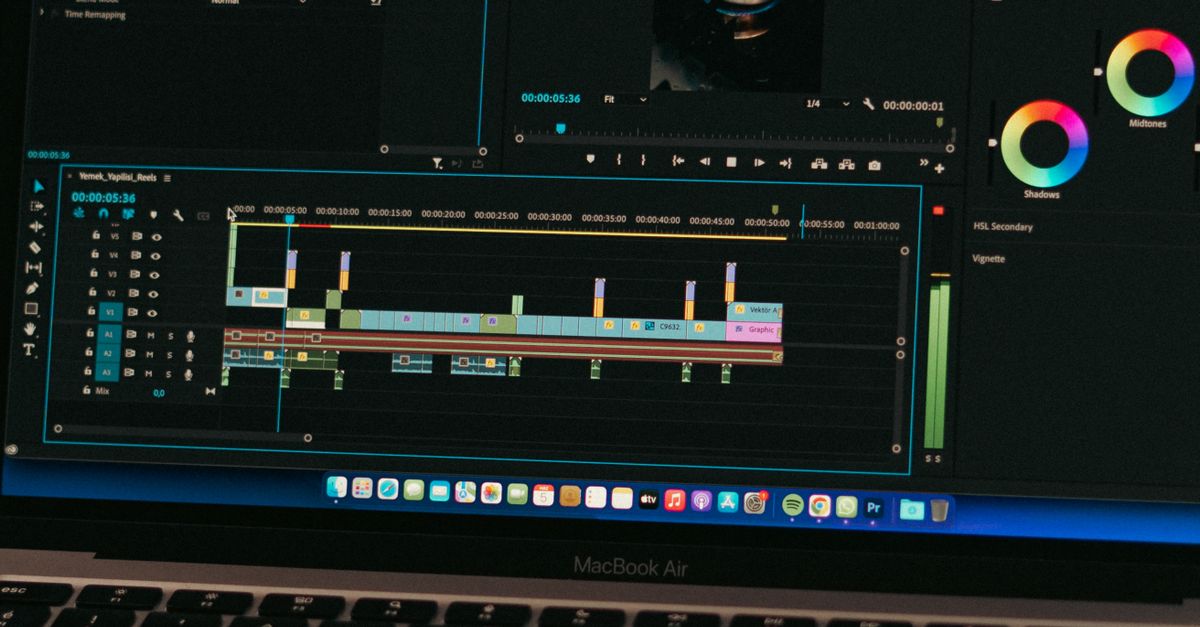
One detail matters if you plan to upload a file back to YouTube for your own video. YouTube lists SubRip (.srt) among the basic caption file formats it supports, and it expects plain UTF-8 text without styling.
Manual Captions vs Auto-Generated Captions
Not every caption track is equally reliable. YouTube Subtitle Downloader shows you which kind each track is, so you can decide how much checking the text needs.
Manual captions are added by the creator or by someone working for them. They usually follow the script more closely, though quality still depends on who prepared them.
Automatic captions are produced by YouTube's speech recognition. According to YouTube, quality can vary, and the captions may misrepresent what was said because of mispronunciations, accents, dialects or background noise. YouTube recommends that creators review them. If you plan to quote someone, publish the text or use it in important work, compare the key lines with the video.
- Automatic captions are offered for more than 60 languages, including English, Spanish, Hindi, Arabic and Japanese. Which one a given video has depends on the language spoken in it.
- Automatic captions may not be ready right after a video is uploaded, because processing time depends on the audio.
- When a video has several audio language tracks, automatic captions follow the default language.
- For live streams, automatic captions are available in English only, and new captions are generated after the stream ends, so they can differ from what appeared live.
Why Some Videos Have No Subtitles to Download
YouTube Subtitle Downloader can only read what exists. When a video returns nothing, one of these is usually the reason:
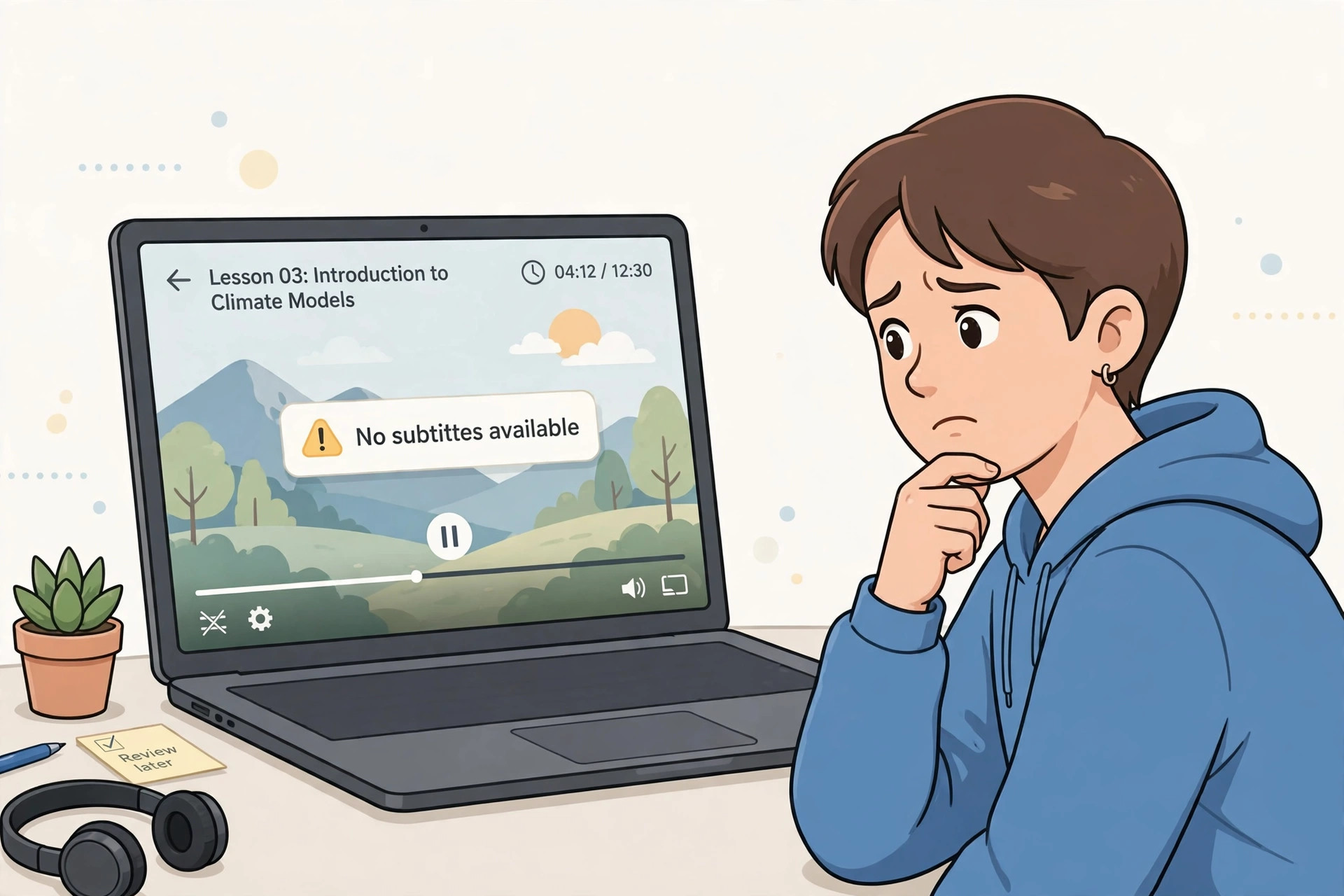
- The video has no captions, manual or automatic.
- Automatic captions are not available yet, since complex audio can take time to process.
- The language spoken in the video is not supported by YouTube's automatic captions.
- The video is very long, has poor sound quality, or has a long silence at the start.
- Several people speak over each other, or more than one language is used at the same time.
- The video is private, removed or restricted, so it cannot be opened without access.
A quick check before you use the tool: open the video on YouTube, expand the description, and look for Show transcript. YouTube says you can view the full transcript of any video that has captions, so seeing that option is a good sign.
Subtitles, Captions and Transcripts: What Is the Difference?
- Subtitles help viewers who speak another language follow the video.
- Captions help deaf or hard-of-hearing viewers, and may also include sound descriptions such as [applause]. YouTube's help pages treat subtitles and captions together because both are timed text shown with the video.
- A transcript is the text of what is said, without the timing that makes it a subtitle file.
On YouTube itself, you can open a transcript through Show transcript in the video description, and clicking a line jumps to that point in the video.

This page covers the same ground in a more portable way. If you are searching for a YouTube transcript downloader, the TXT option gives you the spoken text as a file you can keep, search and paste elsewhere. Keep in mind that it comes from the existing caption track, so its accuracy matches that track.
How to Use YouTube Subtitles
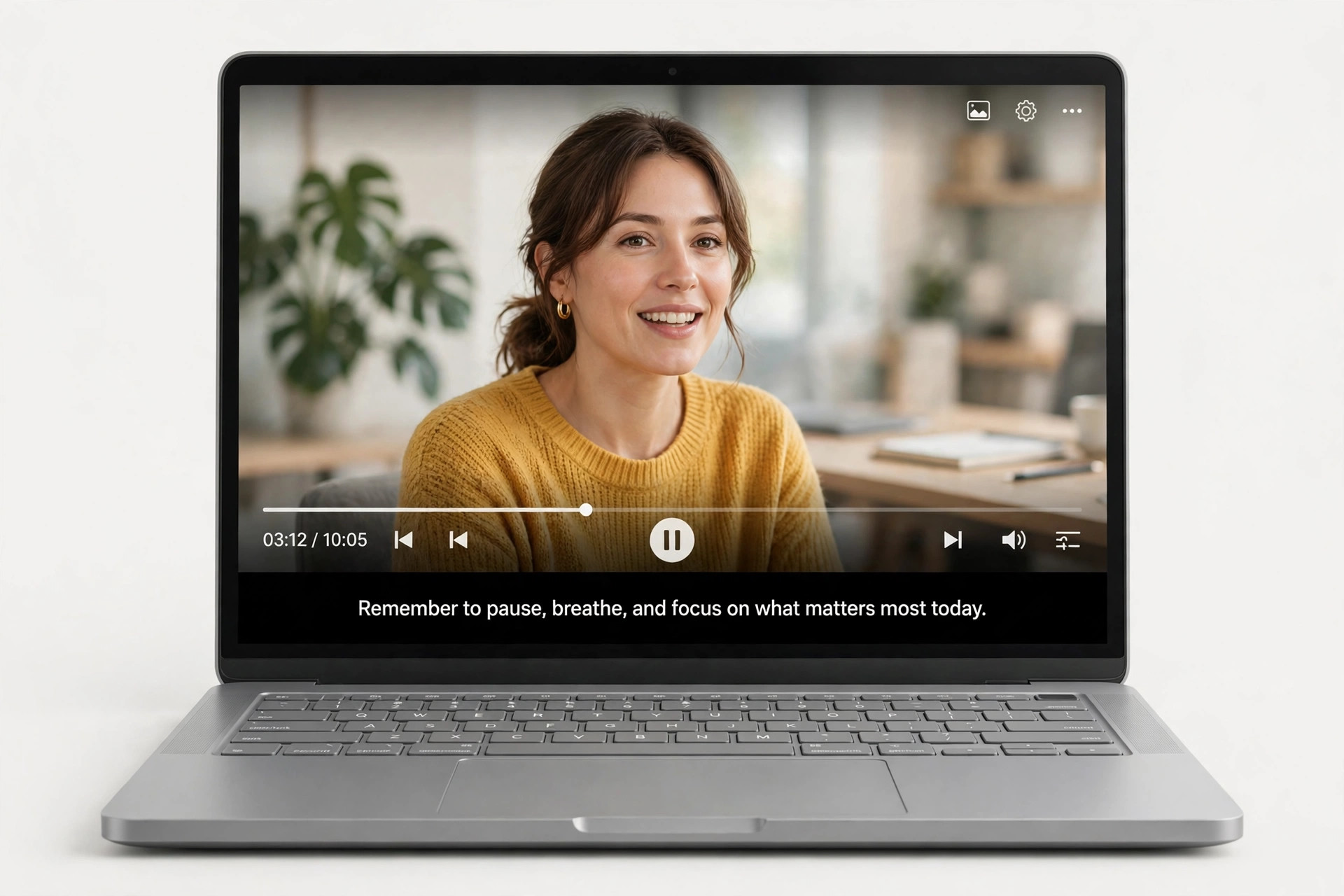
You may read the transcript of a video instead of watching it. Generally reading is faster than watching a video. You may also search for a phrase through the subtitles for your research. You can embed the downloaded .srt subtitles in your favourite video player and watch your videos locally with subtitles enabled. Everything you download with YouTube Subtitle Downloader stays on your own device.
Tips for Cleaner Results
- Start with the manual track. If a language appears both as a manual and an auto-generated track, try the manual one first.
- Keep an SRT copy as well. TXT has no timestamps, so an SRT file helps you find the exact spot in the video later.
- Proofread the details. Names, numbers and technical terms are where automatic captions slip most often.
- Use the file name. Downloads are named after the video title and the language code, which makes a folder of subtitle files easy to sort.
Translated Subtitles
The translation option uses the languages that YouTube offers for the specific video you entered. The list can differ from one video to another, and some videos offer none.
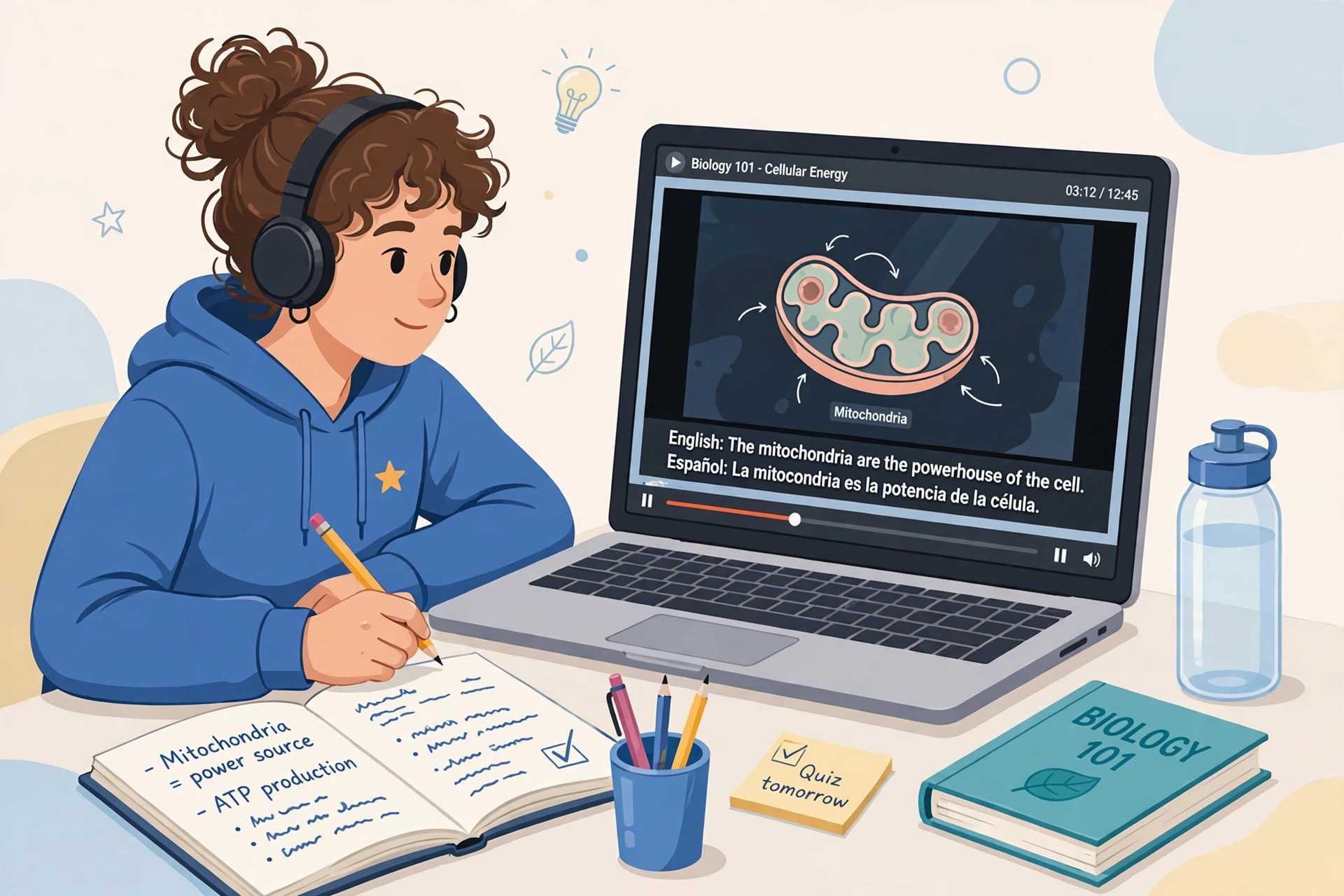
Translated text is a machine rendering of an existing caption track, so it is best treated as a reading aid rather than a polished translation. For anything public or professional, ask a human translator to review it.
Why Download Subtitles from YouTube?
Here is what YouTube Subtitle Downloader is most useful for:
Read the original text alongside the audio to practise listening, and use a translated file as a second reference.
A text version of the video helps anyone who prefers or needs to read the content, including deaf and hard-of-hearing viewers.
Search for a phrase, name or figure without scrubbing through the video, and keep accurate quotes next to your notes.
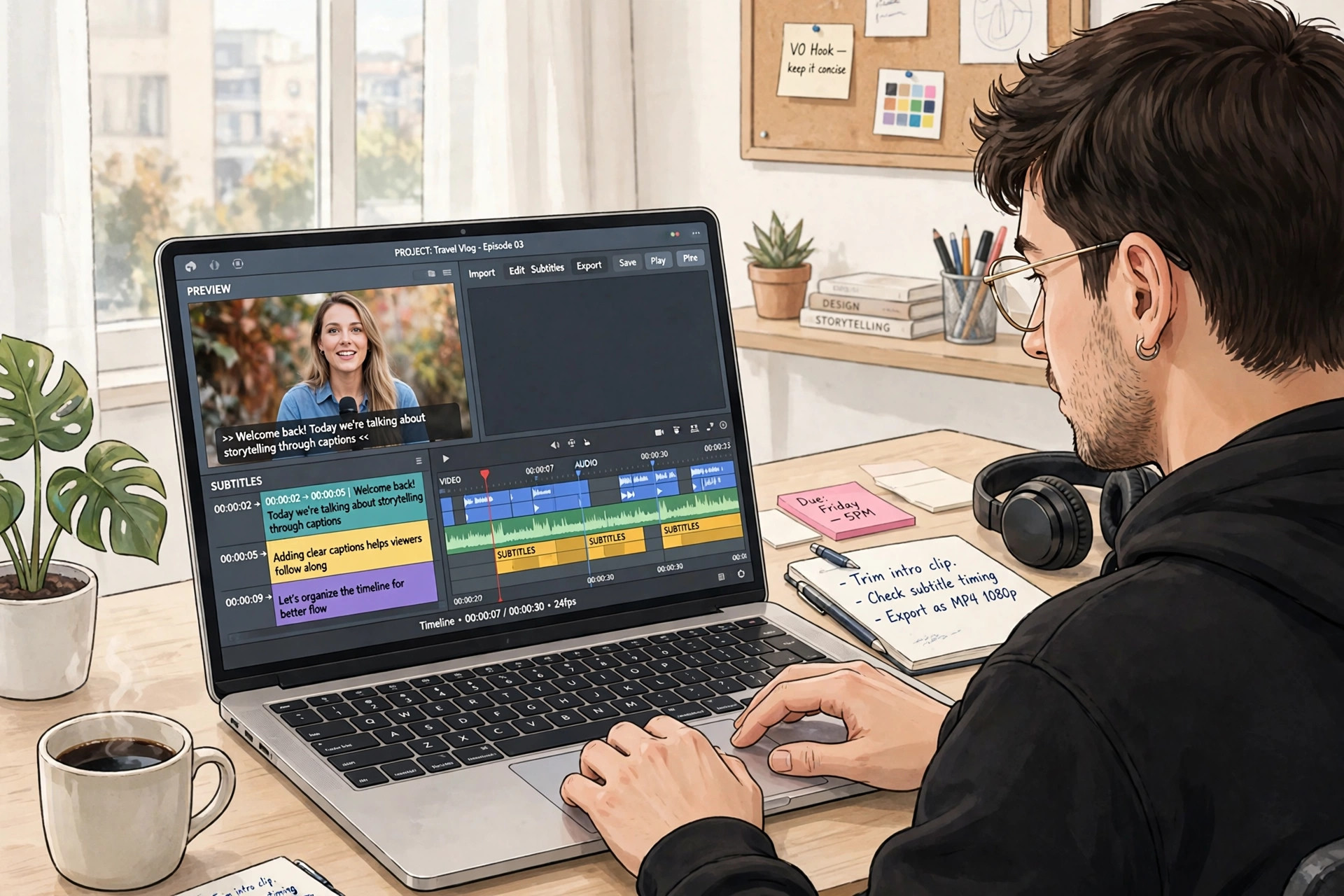
SRT gives editors a starting point for captions that they can correct and adjust for their own videos.
A TXT file lets you skim a long talk or lecture in a few minutes.
Copy the text you need instead of rewatching the whole video to find it.

Using Downloaded Subtitles Responsibly
Subtitle text belongs to the video's creator or rights holder, just like the video. YouTube's Terms of Service restrict downloading or reusing content from the service unless YouTube authorizes it or you have permission from YouTube and, where relevant, the rights holder.
In practice, the safest uses are your own videos, videos where the creator has given permission, and personal study or accessibility needs. Publishing someone else's captions as your own text, or selling them, is a different matter and can raise copyright problems. This is general information, not legal advice, so check the rules that apply to you if you are unsure.
If you are the creator, YouTube Studio is where you manage your own captions, including reviewing automatic ones under Subtitles.
Frequently Asked Questions
Is this YouTube subtitle downloader free?
Yes. You can use it without paying, creating an account or installing software.
How do I download YouTube subtitles as SRT?
Paste the video link, press Get Subtitles, choose a caption language, and click SRT. The file downloads to your device with timestamps for each line.
Can I download subtitles as VTT or TXT instead?
Yes. After the captions load, you can click VTT for a WebVTT file or TXT for plain text. TXT has no timestamps.
Does it work with automatic captions?
Yes, when the video has them. Automatic tracks are labeled as auto-generated in the language list. Check names, numbers and technical terms against the video, because speech recognition can get them wrong.
Why does the tool say there are no subtitles?
The video probably has no caption track, or its automatic captions are not ready or not supported for the spoken language. Private and restricted videos also cannot be read.
Does the tool transcribe the audio of a video?
No. YouTube Subtitle Downloader downloads caption tracks that YouTube already has. A video without captions will not produce a file.
Can I download subtitles in a different language?
Yes, in two ways. If the video has captions in several languages, pick the one you want. If YouTube offers translation for the video, you can also choose a translation language.
Can I download subtitles from a private video?
No. The tool works with videos that can be opened publicly. It does not bypass private or restricted access.
Which format should I pick if I am not sure?
Pick SRT if you need a subtitle file, and TXT if you only want to read or search the words.
Can I use it on my phone?
Yes, because it runs in a browser. In the YouTube app, tap Share under the video, choose Copy link, then paste the link into the box above and press Get Subtitles.
Do I need to install anything?
No. Everything happens in your browser.
Download YouTube Subtitles Now!
Share This Tool
Spread the word about youtubesubtitlesdownloader.com